Eddie's Map Editor: user guide
How to make and change a TripleA map with the editor, tool by tool and control by control. The pages use the editor's own words: a heading is a tool or a control as you see it on screen, and the numbers in a picture are explained below it. For installing the editor see the README on GitHub.
The pictures show the dark theme. The editor follows TripleA's look: with a light TripleA it is light, with the same controls in the same places.
Start here
-
The header, the sidebar, the map beside the tools, the keys, saving and undo.
-
The File menu, the map picture menu, View, Paint, Places, Sort and the ⋯ list.
-
The wizard that starts a map from a picture in three steps.
-
What to do next, the problems, the overview and a tile per tool.
The tools
-
Map
Territories owners, PUs, units, places, borders · Connections · Canals · Terrain effects · Map look unit size, markers, relief, Resize map
-
Players
Nations alliance, colour, flag, PUs, rules · Politics how pairs start · Objectives · Technology
-
Units & economy
Units every unit type, every option · Production what nations buy and repair, resources, buy window tabs
-
Game flow
Turn order the steps of a round · Game options · Actions political and user actions · Triggers and the trigger assistant
-
Texts & sound
Game notes · Texts objective texts, messages, tool tips · Sounds
-
Share & advanced
Publish name, version, description, upload · Attachments every attachment as the game file has it · Files the map's files on disk
The window
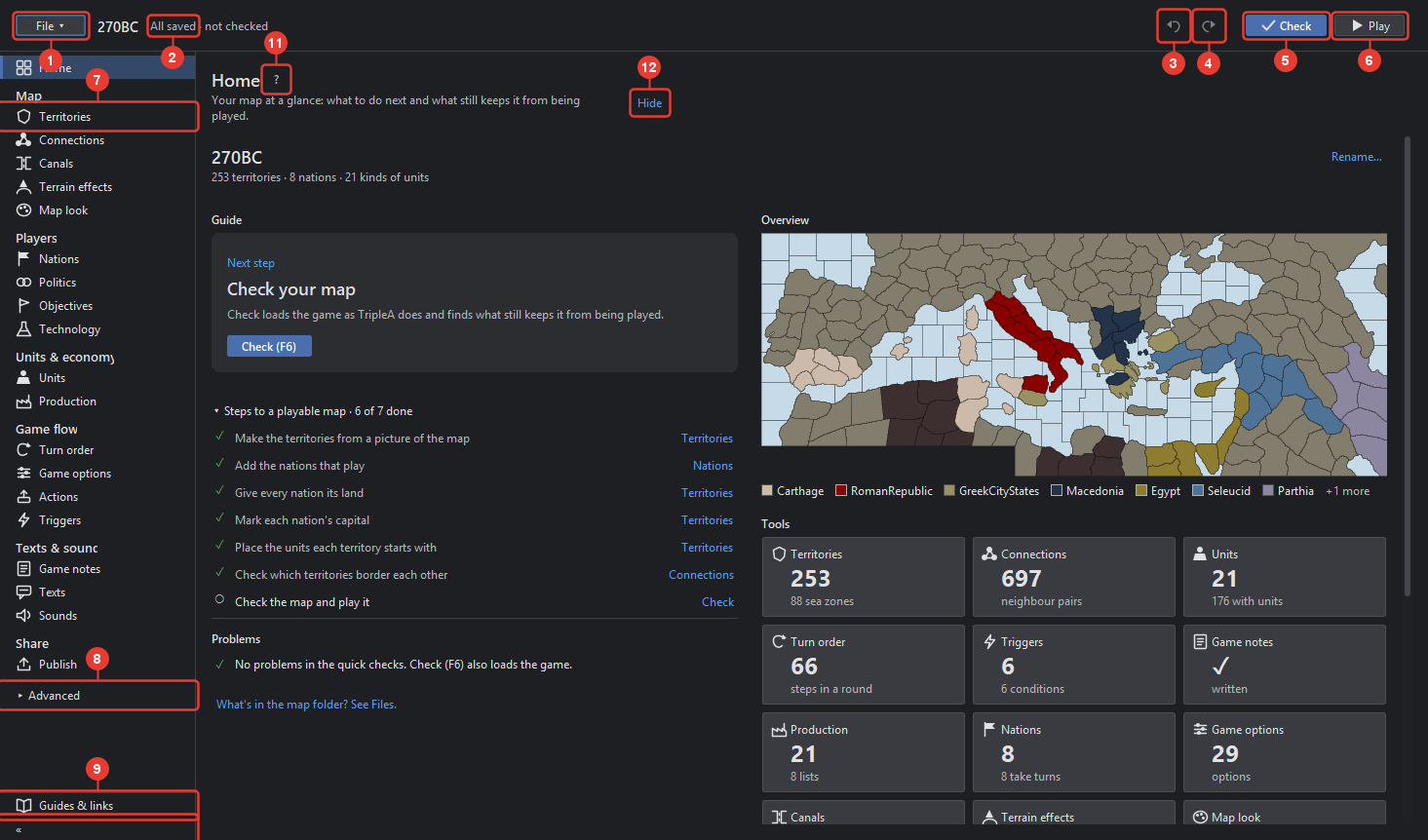
- File opens the File menu: open, new, recent, rename, export, publish, play with, the folder, close, Show all options.
- Save state. "All saved", or "• Not saved" in orange, and "not checked" until Check ran. The Save button appears beside it once there is something to save.
- Undo (Ctrl+Z) takes the last step back. Every change is a step, also a save does not end the chain.
- Redo (Ctrl+Y) does it again.
- Check (F6) loads the map as TripleA does, plays the first round in memory and lists what stops the game. The result shows as a pill beside the save state and on Home.
- Play (F7) saves, runs the same check on the saved files and starts TripleA with the map.
- The sidebar lists the tools in groups: Home, Map, Players, Units & economy, Game flow, Texts & sound, Share. Alt+1 to Alt+9 open the first nine. The chosen tool has a bar at its left.
- Advanced folds the Attachments and Files tools in and out. The editor remembers it.
- Guides & links opens TripleA's map making guides and the places to ask for help.
- « at the bottom of the sidebar shows icons only, to give the map room; the icons' tool tips still name the tools.
- ? beside a tool's title explains the tool. Many fields have their own "?".
- Hide hides the hint line under the title. The "?" still has it.
One of Check, Save and Play is highlighted: the one that comes next.
The map beside the tools
Most tools show the map. Its toolbar, views and legend are described on the Territories page, since that tool uses them most. The row under the toolbar shows a goal while you follow a step of Home's guide, and a progress bar while the map's picture is read from its tiles or a resize works.
Keys
| Key | Does |
|---|---|
| Ctrl+O | Open a map |
| Ctrl+N | New map |
| Ctrl+S | Save |
| Ctrl+Z, Ctrl+Y | Undo, Redo |
| F6 | Check |
| F7 | Play |
| F8 | Export as zip |
| Ctrl+W | Close map |
| Alt+1 … Alt+9 | The first nine tools |
| Ctrl+0 | Fit the map |
| Ctrl+wheel | Zoom the map |
| Delete | In a table: remove the chosen row |
Saving and undo
Every change is a step. Undo takes it back, also after a save. Save writes only what changed and
keeps the first version of each file as .bak. The Save button's tool tip lists what the next
save writes, for example "Saves 3 files: 300BC.xml, place.txt, map.properties". A save never
writes a half file: it writes beside the file and moves it into place.
"More" rows and Show all options
Options the game reads rarely sit behind a "▸ More … options (n)" row. Click it to open it; the editor remembers which rows are open. Show all options in the File menu opens every such row in every tool, now and next time.
Lists and search
A tool with many things, such as Territories or Units, has a list on the left with a search field above it. Type a part of a name. Where the list has groups, a header row folds a group. Click a row to choose it; the right side then shows what it has, with "← All …" at the top to go back to the list.
When something goes wrong
A unit shows as a name badge on the map
The editor found no picture for it: none in units/<nation>/, none in units/ itself, and
none among the game's own. Upload one in Units.
Gives support says None, stacking limits are blank
The support or limit may be written in Attachments for every unit or nation of a variable
(foreach); the tools show those read-only.
A size in Resize map is greyed out
The picture is not saved yet: save first, then it is resized from its tiles at any size.
The game does not start
Check (F6) says why and links the tool.
The toolbar's words are cut, like \"Draw bord…\"
The window is narrow for the inspector shown; widen it, or hide the sidebar's words with «.
Found a bug or miss a feature? Open an issue at github.com/xXEddieXxx/eddies-map-editor/issues.