New map
File → New map… (Ctrl+N), or New map on the start page. The wizard makes a map from a picture in three steps and saves it in TripleA's maps folder, where TripleA finds it.
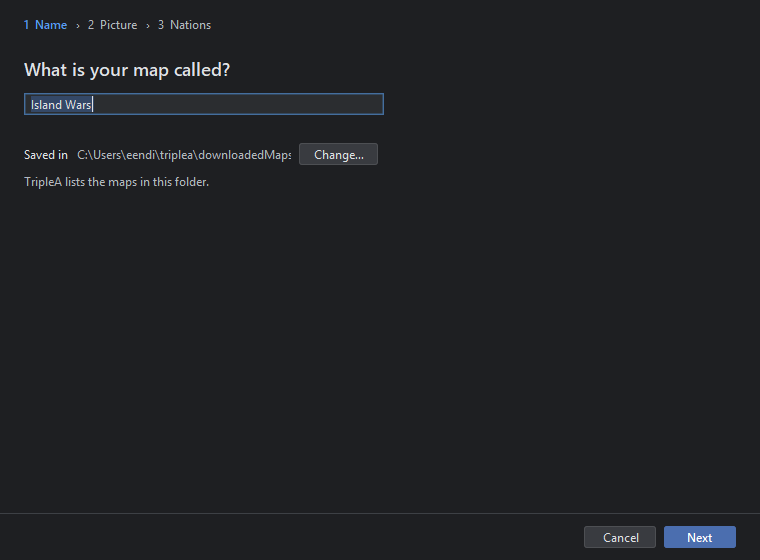
1 Name
- What is your map called? The name players see. It becomes the folder's name too, in small letters with underscores, and the game's name. Rename map changes the game's name later; the folder keeps its name.
- Saved in shows TripleA's maps folder. Change… picks another folder; TripleA lists the maps in the folder it is told.
- Next goes on once the name is typed; Cancel leaves without a map.
2 Picture
- Choose the picture of your map opens the system's file dialog for a PNG, JPEG, GIF or BMP. The editor reads it and looks for territories at once: areas of one colour between dark lines become territories, the blue ones sea zones. A big picture takes a moment; the status line and a bar say so, and Next waits for it.
- A preview shows the territories found, each with its outline. If the count is wrong, the picture's borders are not closed or not dark enough: fix the picture and choose it again.
- A map without a picture is possible too: skip this step and draw the borders later with Draw borders in Territories.
3 Nations
- Nations one per line. Each gets a colour, a flag and the unit pictures of a standard nation, tinted in its colour, so the map plays at once.
- Create writes the map: its folder with map.yml, the game, the outlines, the picture cut into tiles, flags and unit pictures. A bar shows it working; a map is written whole or not at all. Then the map opens on Home, which says what was found and what to do next.
After the wizard
Home's guide lists the steps to a playable map: give every nation its land, mark the capitals, place starting units, check the connections, then Check and Play. Each step opens its tool with the step as the goal above the map.