Territories
Click a territory to change it. Use Paint to give many territories an owner, a value or units at once. The tool shows the map with its toolbar, the list of territories on the right, and the chosen territory in place of the list.
The map and its toolbar
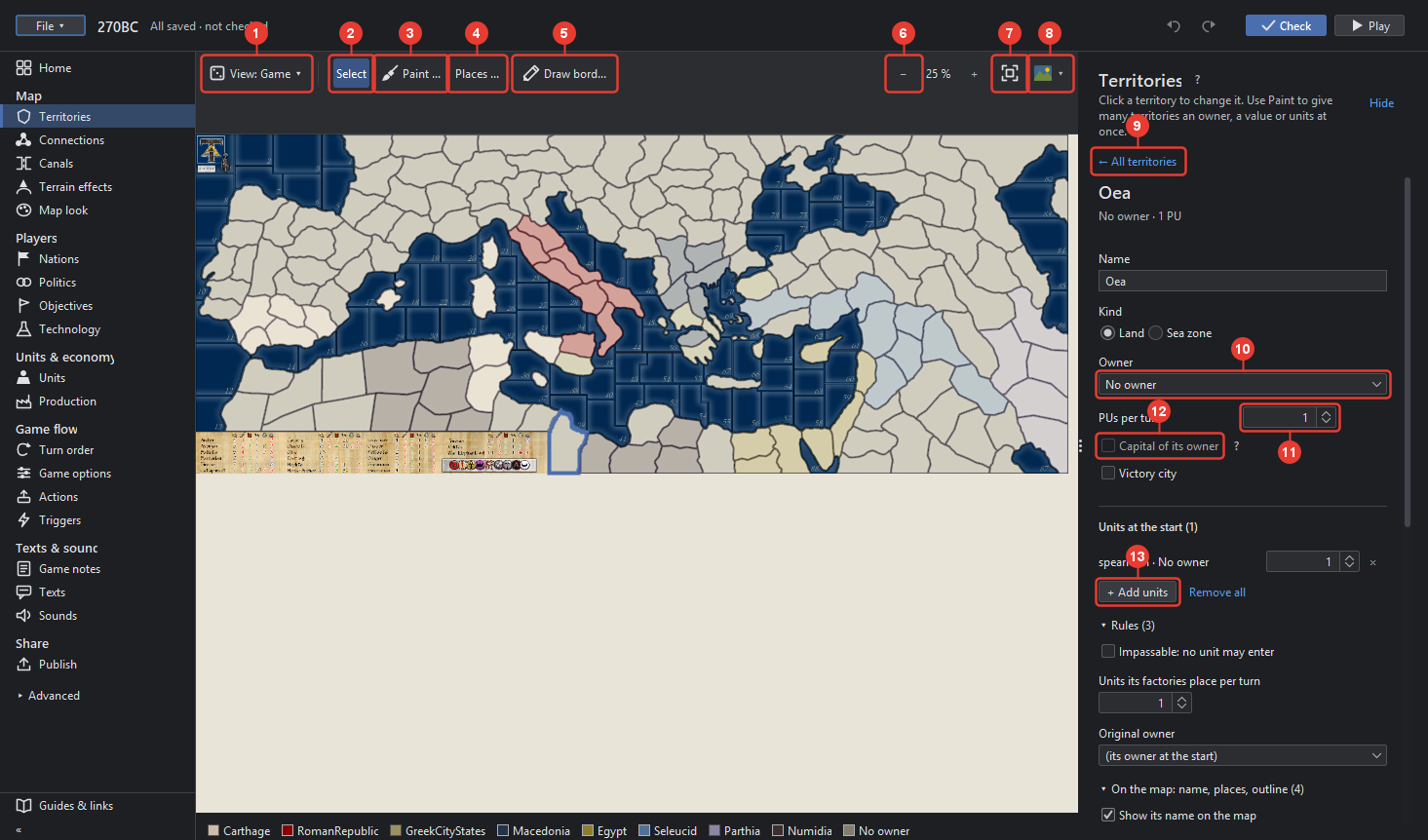
- View switches the colouring: Game, Owners, Political, Values, Units, Connections. See View.
- Select is the usual mode: a click on the map chooses the territory.
- Paint opens the brush menu: owner, capital, PUs, units, passable, terrain effects, textures. While a brush is chosen, a click or drag paints; the row above the map says what is painted and has a field for the value. See Paint.
- Places shows where the game draws units, names, flags and markers on every territory, to drag; lays out unit places; creates missing ones. See Places.
- Draw borders draws dark lines into the map's picture; Erase takes lines out. The relief is hidden meanwhile. Then Make territories finds the territories between the lines, keeping names, owners and units where a territory stays. Lines drawn are kept with the map until a save writes the tiles they touched.
- −, the zoom in percent, +: zoom out and in; Ctrl+wheel does the same, a click on the percent goes to 100 %.
- Fit the map (Ctrl+0) shows the whole map.
- Map picture menu: show or hide the picture, load another, redraw borders from a picture, make territories again, resize, save the picture or the relief as a file. See The map picture menu.
- ← All territories goes back to the list.
- Owner the nation that owns it at the start, or No owner.
- PUs per turn what the territory gives its owner each turn to buy units with.
- Capital of its owner ticks the territory as the capital; a nation has one. Victory city below marks it for a victory condition.
- Units at the start: each kind with its count, × removes it; + Add units adds a kind, Remove all takes every unit away. 0 in a count removes that kind.
Above the owner: Name, typed and taken on Enter; a name in use is refused. Kind: Land or Sea zone.
The legend under the map names the nations' colours; +n nations opens the rest. Under the Game view a hatched sea zone is one no unit may enter.
The rest of a territory
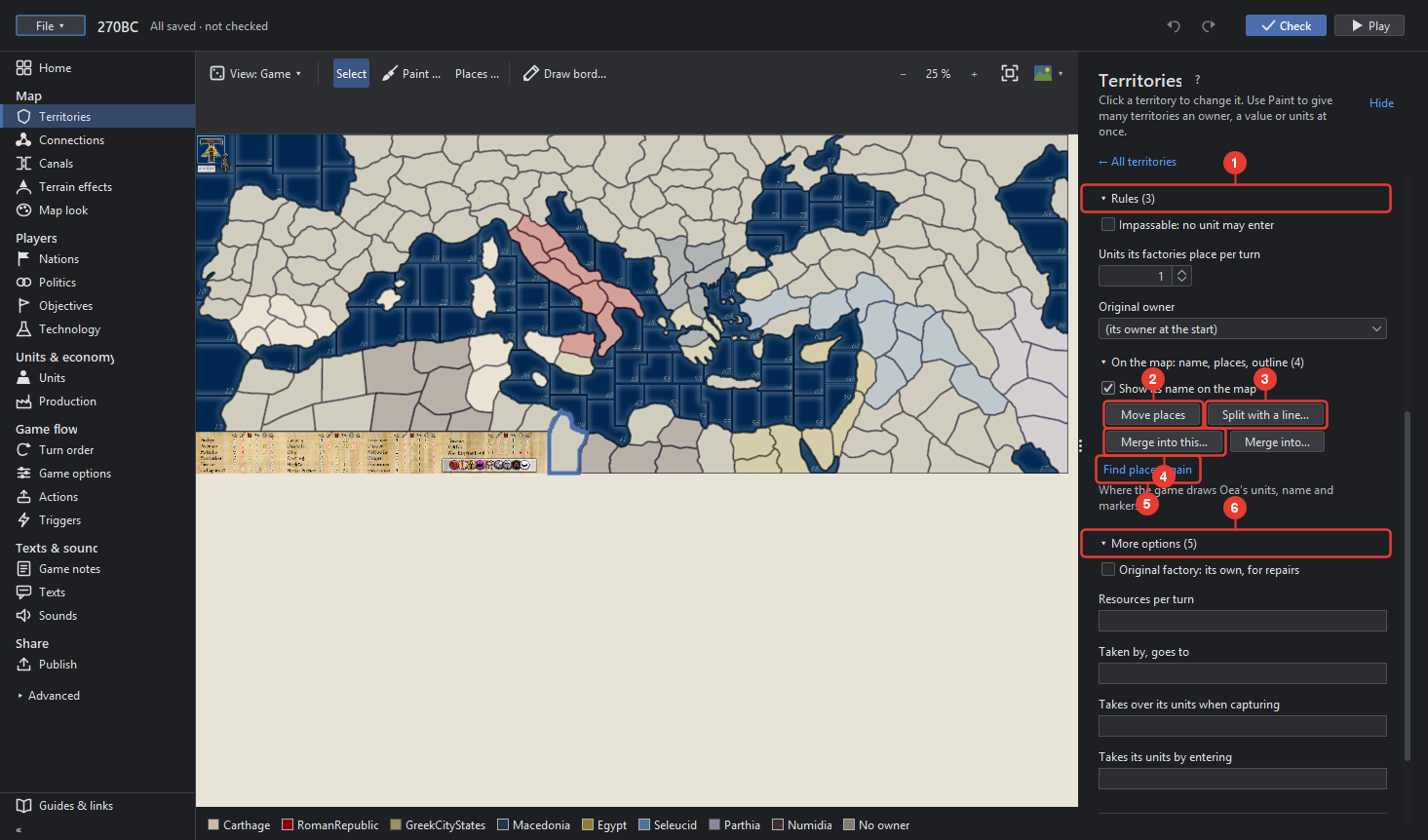
- Rules: Impassable: no unit may enter; Units its factories place per turn, as many as its PUs unless set here; Original owner, who gets it back when an ally frees it, if not its owner at the start.
- On the map: name, places, outline. Show its name on the map, off where the picture has the name already. Move places switches the Places mode on for this territory.
- Split with a line… draws a line across the territory and makes two of it; the new one is named in a dialog.
- Merge into this… then click each territory that belongs to it, for example the islands of a group; Merge into… makes this territory part of another you choose.
- Find places again finds the places inside the territory's border again, for example after its outline changed.
- More options: Original factory: its own, for repairs; Resources per turn besides PUs, for example 2:Ore; Taken by, goes to pairs captor:receiver, so a territory taken by the first goes to the second; Takes over its units when capturing and Takes its units by entering list nations, as the game's whenCapturedByGoesTo, changeUnitOwners and captureUnitOnEnteringBy.
- Neighbours lists the connected territories as buttons, each a click away; → Edit in Connections opens the Connections tool on this territory.
- Remove territory takes it out of the game, its outline and its places with it. Undo brings it back.
The list
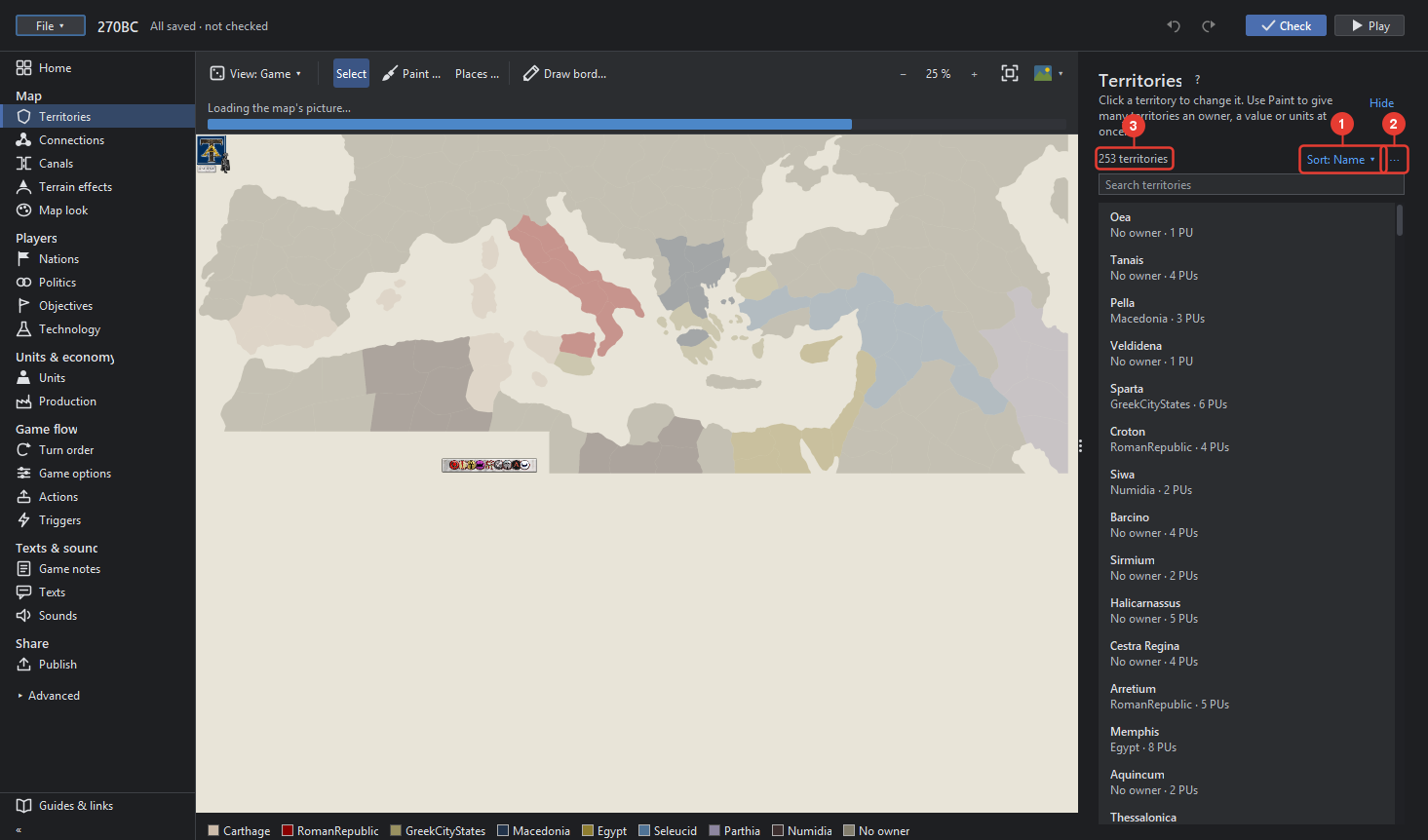
- Sort orders the list by Name, Owner or PUs. See Sort.
- ⋯ Many territories at once: export and import names, export territory pictures, remove territories. See Many territories at once.
- The count, and the search field below it: type a part of a name. Each row names the territory with its owner and PUs; a click chooses it.
Draw borders, step by step
- Choose Draw borders. The relief is hidden so the lines show. Pick the line's width and colour in the row above the map; "Like its lines" takes the colour most of the picture's lines have.
- Draw across the picture. A line joins existing borders where it ends near them. Erase takes a line away where you drag.
- Choose Make territories. The territories enclosed by the new lines are found; the rest stay as they were. New territories are named by number; rename them in the list.
- Save. Only the tiles the lines touched are written, their first version kept as
.bak.