Home
Your map at a glance: what to do next and what still keeps it from being played. The editor opens a map here.
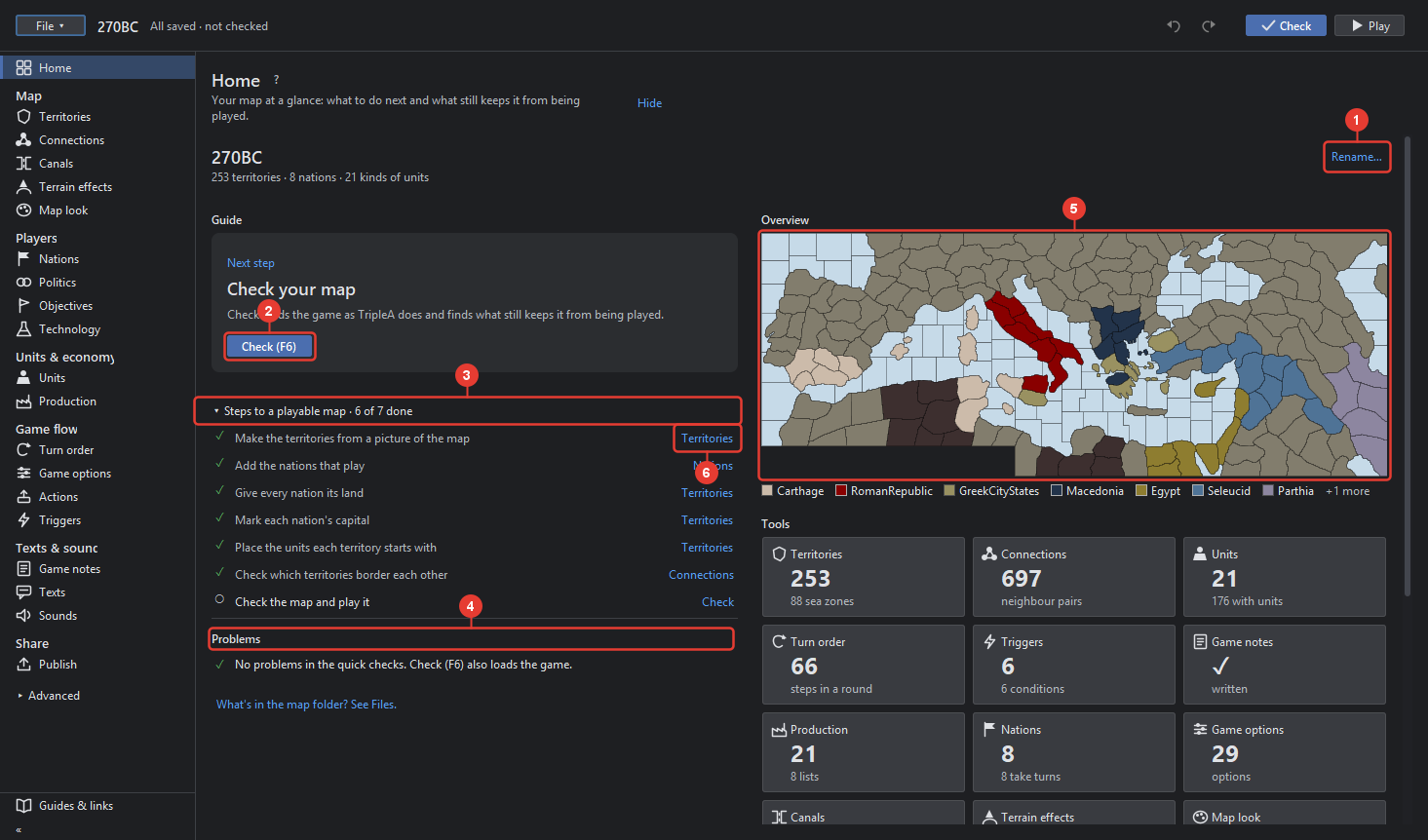
- Rename… renames the map: the game's name and the entries in map.yml. See Rename map. The line below the name counts the territories, nations and kinds of units.
- Next step. The guide's card names the one step that comes next, with a button that opens its tool or runs it, here Check (F6). After a clean Check the card suggests what to improve.
- Steps to a playable map folds the full list: a ✓ for each step done, ○ for the rest, and the tool that does it at the right. Click a step to open its tool with the step as a goal: the row above the map says what to do, and the tool is set up for it, for example the Paint brush with the next nation's colour.
- Problems lists what the quick checks found, with a link into the tool that fixes each. "Check (F6) also loads the game" reminds that only Check finds what TripleA refuses. After a Check the list holds what TripleA said, with Show all when there are many.
- Overview draws the map small in the owners' colours, with the nations' legend below; "+n more" lists the rest in its tool tip.
- Tools are tiles, one per tool, each with a count that says what the map has there, for example 253 territories and 88 sea zones. Click a tile to open the tool.
Below the tools, Check now runs Check, and What's in the map folder? See Files. opens the Files tool.